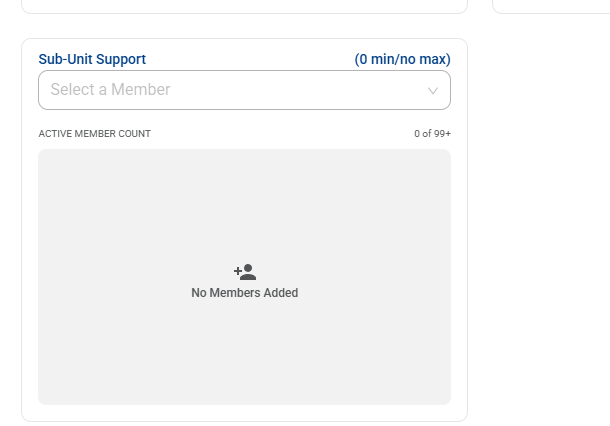
I have multiple den leaders indicating that they are getting 403 error when trying to use the quick entry feature.
They have cleared their cache out and are able to see all of their den members but are only able to enter adventures one at time by going scout by scout.
Did something change with how the system works? I am a cub master I can get to the quick entry screen and enter the information.
How do I grant them access to quick entry. It is a function of the den leaders role to be able to enter advancements. Having to go scout by scout is painfully slow.
@JoshuaLueck- look at what I posted
The den leaders all have adventure entry permissions enabled at the den level. They are all listed as den admins.
None of them can access the quick entry screen. How do I fix that.
@JoshuaLueck- did you look at the permissions manager in advancements.scouting.org ?
yes I checked that. It is showing that they all have admin rights
@JoshuaLueck- they are listed here:
Have the den leaders logged all the way out, cleared cache and forced a reload of advancements.scouting? I wonder if they have stale permissions cached somehow. I’m not sure how the permissions are “tracked”, but I have to assume it’s not a testing of permissions each time, but rather some sort of tokenized permissions scope. I wonder if the token on each of their machines is just reflecting the old permissions structure because it hasn’t been refreshed.
If having them fully refresh their SB+ doesn’t solve the issue, you might try updating some other optional permission, then saving the permissions, then remove the optional permission you added. I’m wondering if the permissions didn’t push in some cases. If that works, it might be an easy-enough work-around for units to get things moving again.
How. do you get to that. I do not see it in my position manager in scout book
Cache has been cleared. This is happening to all of my den leaders. It is also absolute insane how silent scout book updates are. This is major change that should have at least had Key 3 communication, and round table communication.
The folks who make these decisions aren’t on the boards, so unfortunately any feedback on notifying units/unit leadership likely has to go up via our respective councils to national.
Everyone was converted to the new permissions structure, so it’s completely expected that it would hit all of the den leaders. In a way, it would be stranger if it was only one or two.
Yes we are using advancements.scouting.org.
Between scouting for food, on boarding 33 new scouts, getting ready for a camp out next week and a court of honor pack meeting coming up we don’t have time to watch a video and relearn the advancement system.
Can anyone tell me the fastest way to fix this mess that has been created.
@JoshuaLueck
Scroll to the bottom of that section
What is the difference between an Advancement Approver and an Advancement Editor? To which functional role should I add my Den Leaders and Assistant Den Leaders so that they can continue to mark requirements as Completed and Approved and mark advancement items as Awarded?
Advancement Editor can edit advancement (Complete and enter data and comments). Approver can APPROVE advancement.
If you want DLs to approve their own dens advancement then they need approve permission - either through a functional role like Advancement Approver - OR individually through the permission manager.
Do I need to add my Den Leaders and Assistant Den Leaders to the functional roles of Advancement Editor, Advancement Approver, and Advancement Awarder in order to restore the level of permissions they previously had?
If I do so, am I giving them permission to edit, approve, or award requirements for Cub Scouts outside of their respective dens?
@Bagheera DL by default have View, Edit, Approve Advancement IF they are ASSIGNED TO A DEN. ADL are different. To have Sub-unit you have to be assigned to den as a leader

If you want to see what each Leader has go to Permission Manager in SB+ and click Position/Roles Permissions - this breaks it down By Leader. If a Grey check that means they have it by their current position and it cannot be taken away. If it is an empty box that means they do not have it and you can click it to add it IF available.
Scoutbook_Permissions.pdf this PDF breaks down cleanly what Permissions are given by default. The Functional Roles listed are just other ways to achieve things with less clicks - but currently the functional roles are more universal